HELP
HOME / HELP
How to Use the KiwiWrite Draw Tool
The KiwiWrite draw tool allows students to add points, lines, simple shapes, and freehand drawing to their work.
How do I open the Draw Tool?
Click the pencil icon to switch into or out of Draw Tool mode.
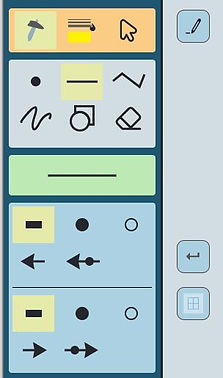
To choose what type of drawing to do, click the tool icon in the top Draw Tool toolbar. Available drawing options include:
-
Point
-
Single line
-
Multi-part line
-
Freehand drawing
-
Simple shapes
-
Eraser
Click or drag in the display area to draw.
How do I change draw tool colors or line size?
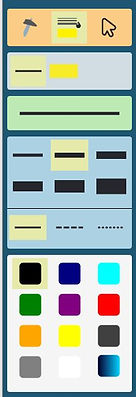
To change drawing settings, click the settings icon in the Draw Tool toolbar.
You can adjust:
-
Drawing color
-
Highlight color
-
Line size
-
Other available drawing settings
These settings affect new drawing items.
How do I move or edit drawings?
To move or edit a drawing, click the pointer/edit icon in the Draw Tool toolbar.
-
Click a drawing item to select it
-
Drag to move the drawing
-
Drag selection handles to resize or adjust some drawings
For example, triangles can be adjusted using the editing dots that appear after drawing.
How do I draw points and lines?
Point
Click once in the display area to place a point.
Single Line
Click and drag from one endpoint to the other.
How do I draw a multi-part line?
Click each endpoint and turning point to create a connected line.
To finish the line do one of these actions:
-
Double-click
-
Long click/tap
-
Move the cursor to an icon in the side panel
How do I use freehand drawing and shapes?
Freehand Drawing
Click and drag in the display area to draw freely.
Simple Shapes
Click and drag from one corner to the opposite corner.
Triangles can be adjusted afterward using the editing dots.
How do I erase drawings?
Select the eraser tool, then click and drag across a drawing to erase it.